
Recent Articles
-
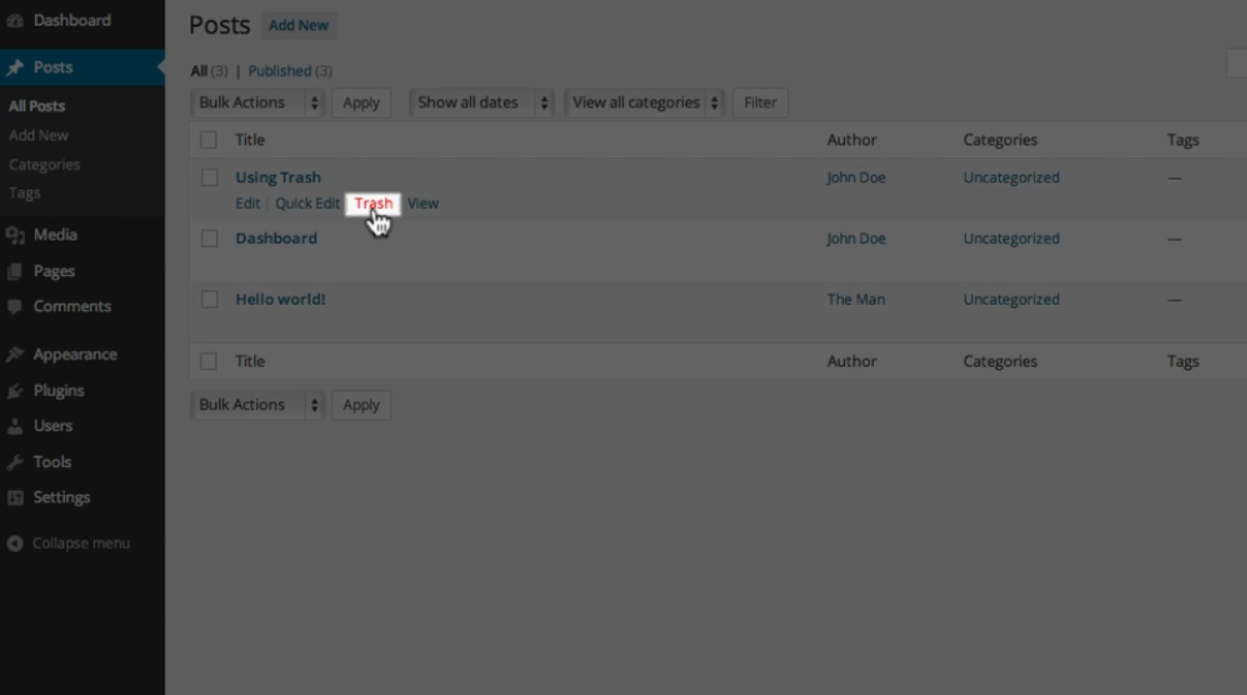
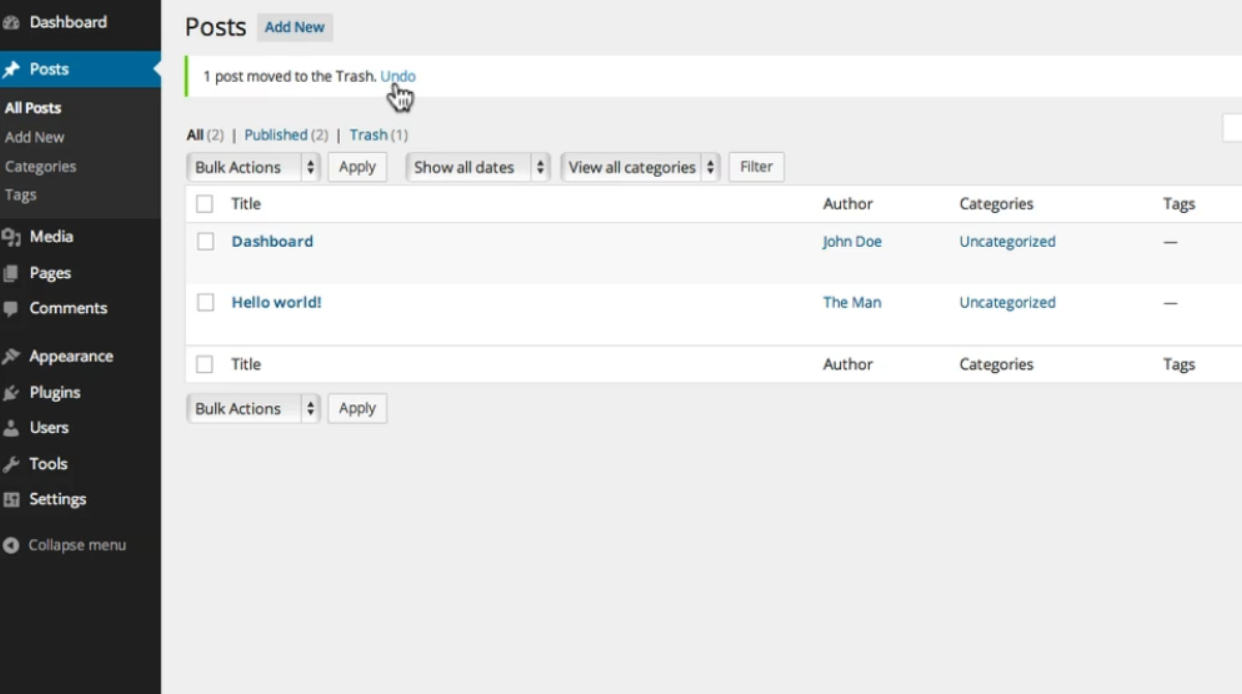
Step By Step Guide: Using Trash
To delete a post or page on WordPress, you can follow these steps: 1. Log in to your WordPress dashboard by entering your username and password.2. Once you’re logged in, you’ll be directed to the WordPress admin area. This is where you can manage your website’s content and settings.3. To delete a post or page,…
-
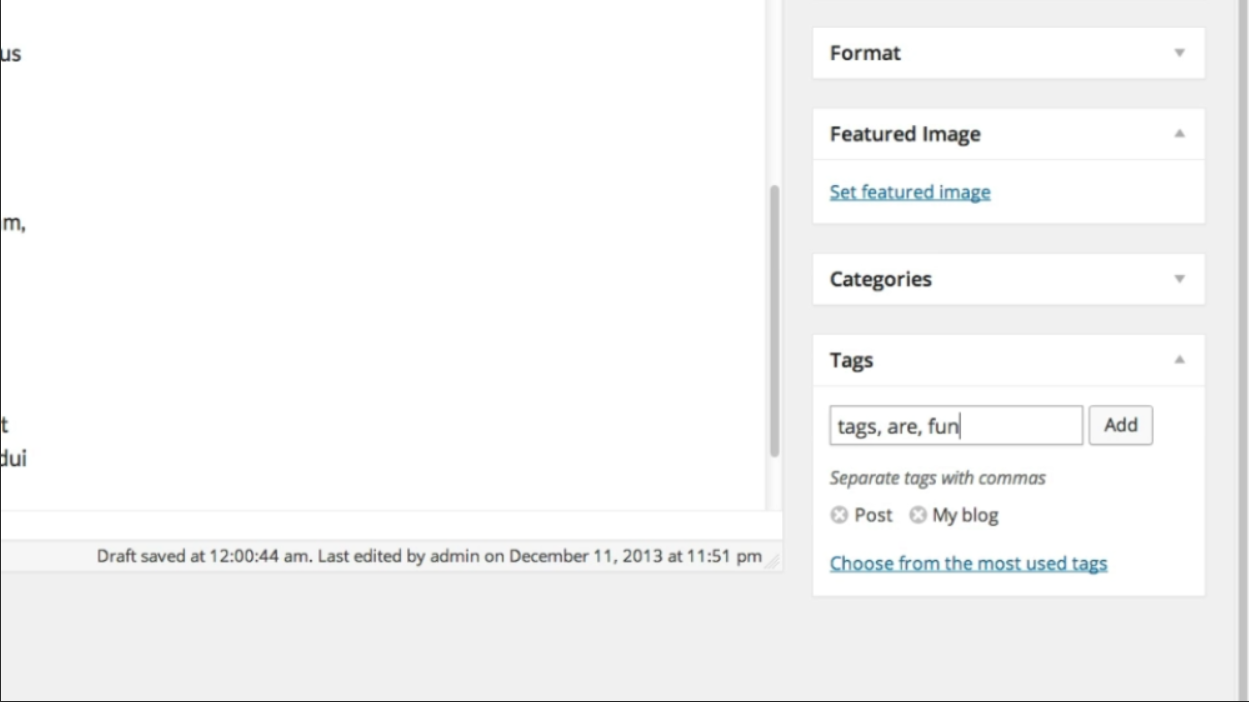
Step By Step Guide: Using Tags
Like categories, tags help to organize the posts on your site, as well as provide searchable keywords that make it easier for users to find your content. Tags are more descriptive than categories and are completely optional for your post. To add a tag, simply follow these steps: 1. Log in to your WordPress dashboard.…
-
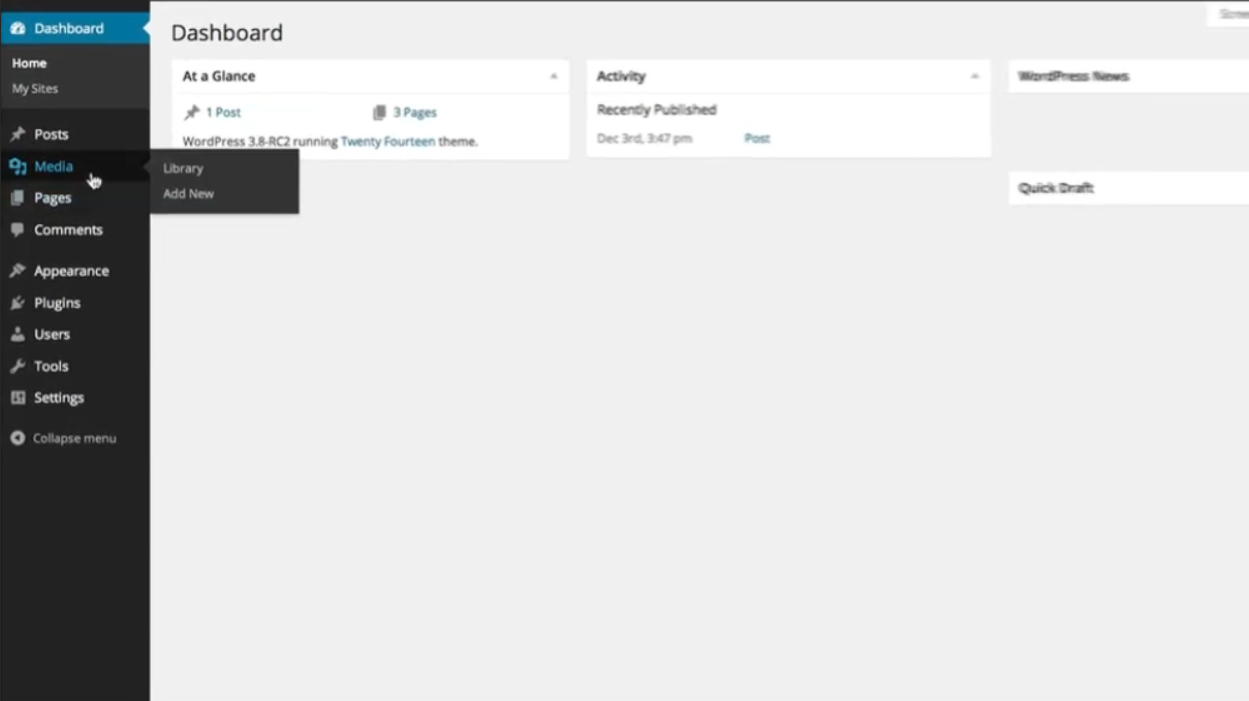
Step By Step Guide: Adding Media
To upload new files such as images and videos to your media library, follow these step-by-step instructions: 1. Log in to your WordPress website and access the admin dashboard. 2. In the sidebar on the left-hand side, scroll down to find the “Media” option. Click on it to expand the menu. 3. From the expanded…
-
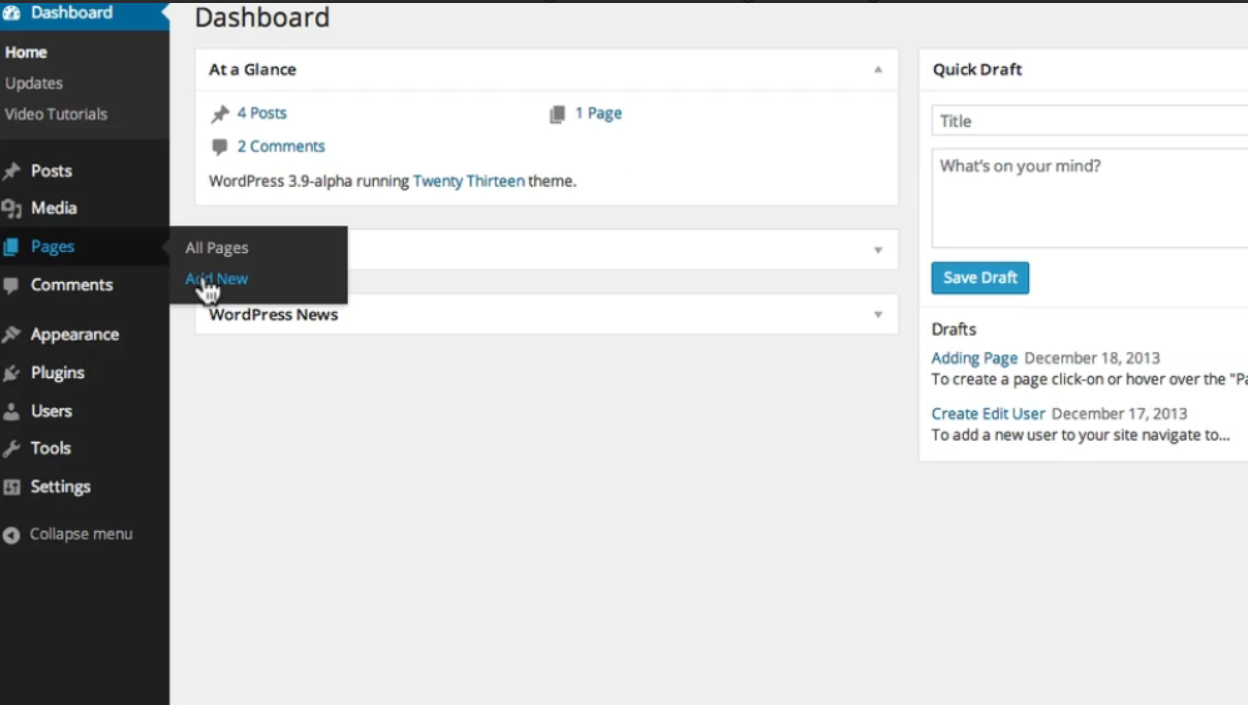
Step By Step Guide: Adding new Page ( Gutenberg )
To create a new post or page on WordPress, follow these step-by-step instructions: 1. Log in to your WordPress dashboard. 2. Once logged in, you will see a sidebar on the left-hand side. Navigate to either “Posts” or “Pages” and click on “Add New.” For this example, we will be creating a new post. 3.…
-
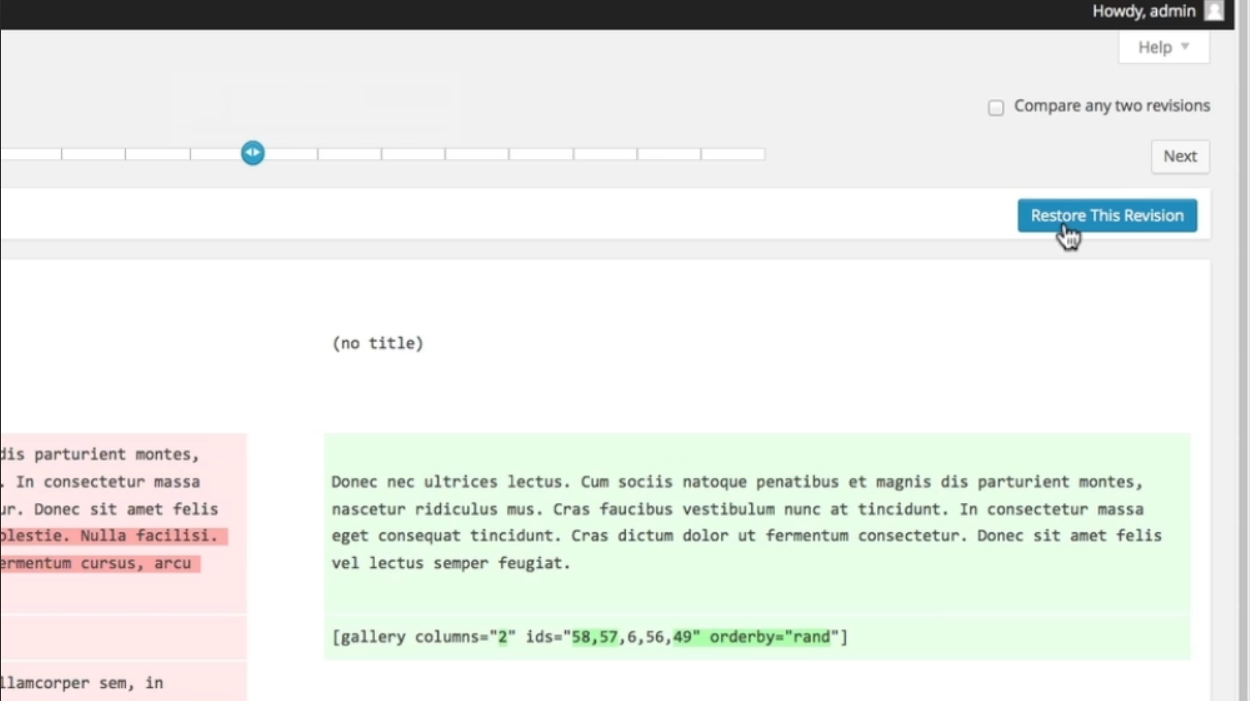
Step By Step Guide: Revision
While you may not need them all the time, revisions can be very useful if you need to recover an older version of a poster page or just to see what you wrote in a previous save. Here’s a step-by-step guide on how to use revisions in WordPress: Step 1: Access the “Revisions” BoxIf you…
-
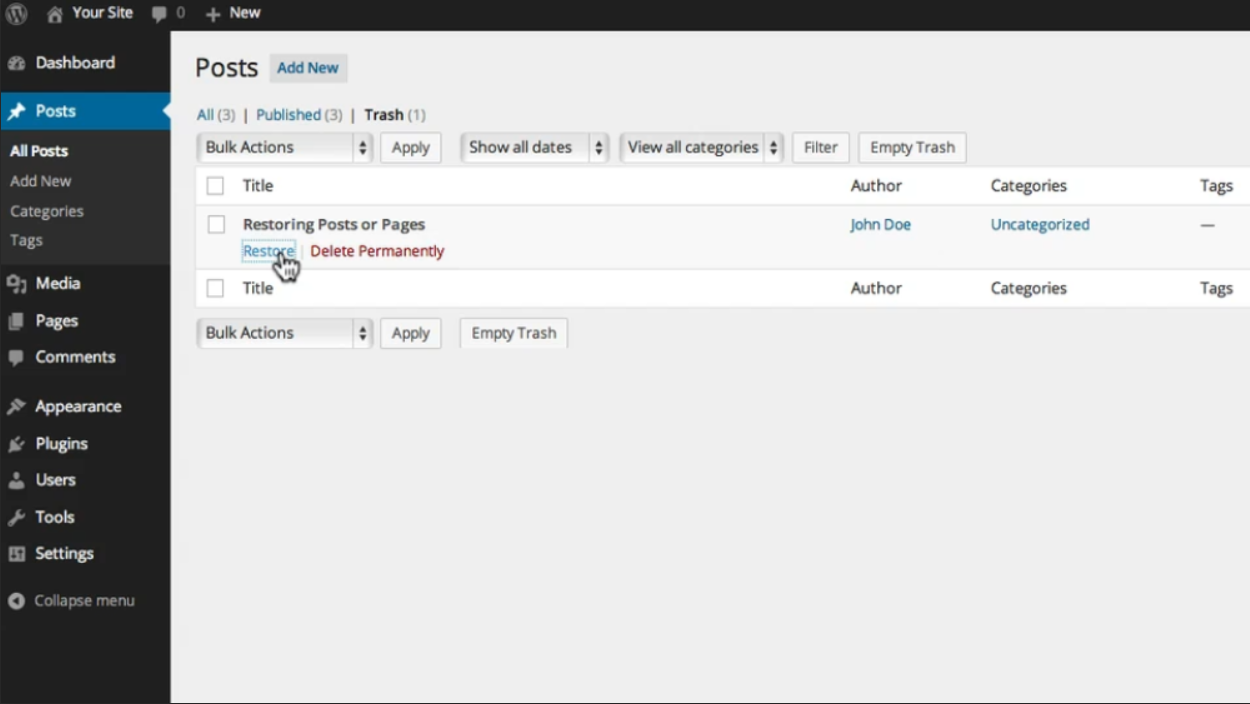
Step By Step Guide: Restoring Post
1. From the dashboard, select “Posts” or “Pages.” To do this, log in to your WordPress website with your username and password. Once you are in the dashboard area, look for the “Posts” or “Pages” option in the left-hand sidebar. Click on it to proceed. 2. Click on the “Trash” link. After selecting either “Posts”…
-
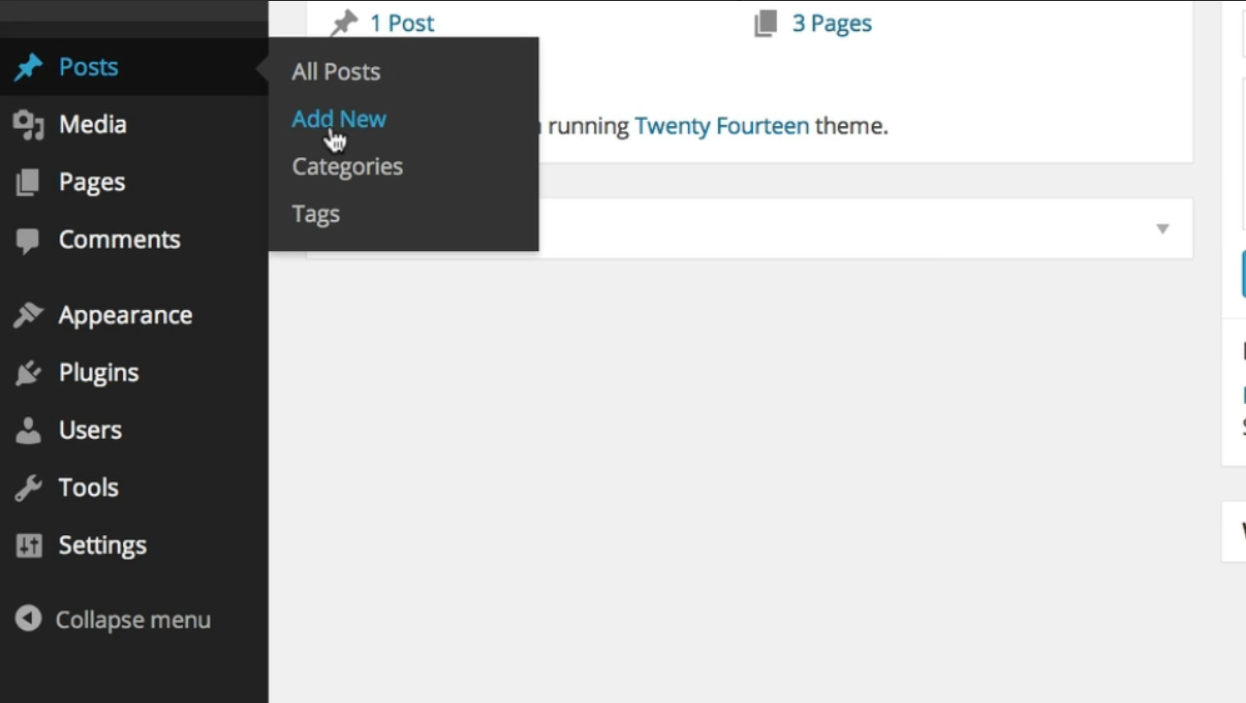
Step By Step Guide: Adding new Post
To create a new post, follow these steps: 1. Log in to your WordPress website using your username and password. This will take you to the WordPress dashboard. 2. On the left-hand sidebar, click on “Posts.” This will expand the options related to posts. 3. From the expanded options, click on “Add New.” This will…
-
Step By Step Guide: Adding new Post ( Gutenberg )
To create a new post or page in WordPress, follow these step-by-step instructions: 1. Log in to your WordPress dashboard. This is usually accessed by adding “/wp-admin” to the end of your website URL (e.g., www.yourwebsite.com/wp-admin). 2. Once logged in, you will be on the WordPress dashboard. In the sidebar, you will see options such…
-
Step By Step Guide: Using Paragraphs (The Classic Editor)
In this tutorial, we will specifically explore how to add a paragraph using the style options from the toolbar. First, be sure you’re using the visual editor by following these steps: 1. Open WordPress and navigate to the post or page where you want to add a paragraph.2. Locate the text editor at the center…
-
Step By Step Guide: The Toolbars (The Classic Editor)
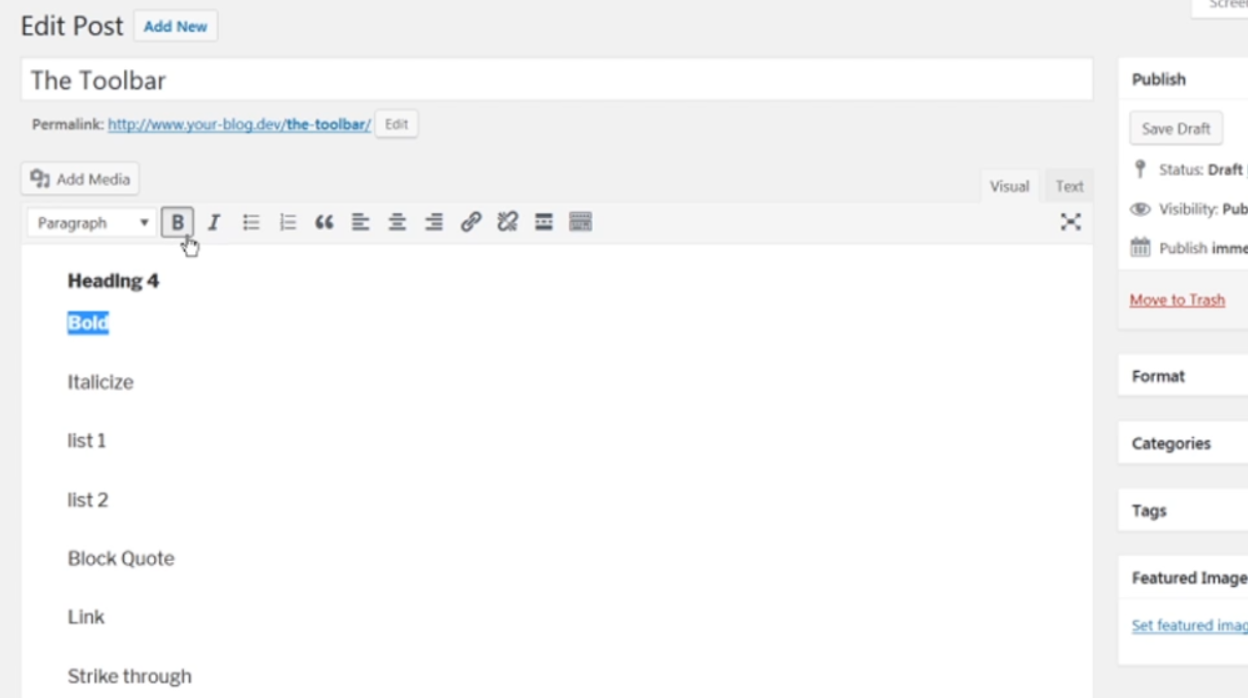
In this tutorial, we’ll take a brief look at all the tools listed in the visual editor toolbar. 1. The first tool is the styling dropdown menu located at the top left of the toolbar. Click on it to adjust the style of your post content. 2. Next, we have the bold icon. To make…
-
Step By Step Guide: List (The Classic Editor)
Lists are a common feature in web content. They make it easier for readers to quickly scan your posts and pages and pick up key details. Here’s a step-by-step guide on how to add a list to a post or page in WordPress: 1. Log in to your WordPress dashboard.2. Go to your post or…
-
Step By Step Guide: Post Excerpts (The Classic Editor)
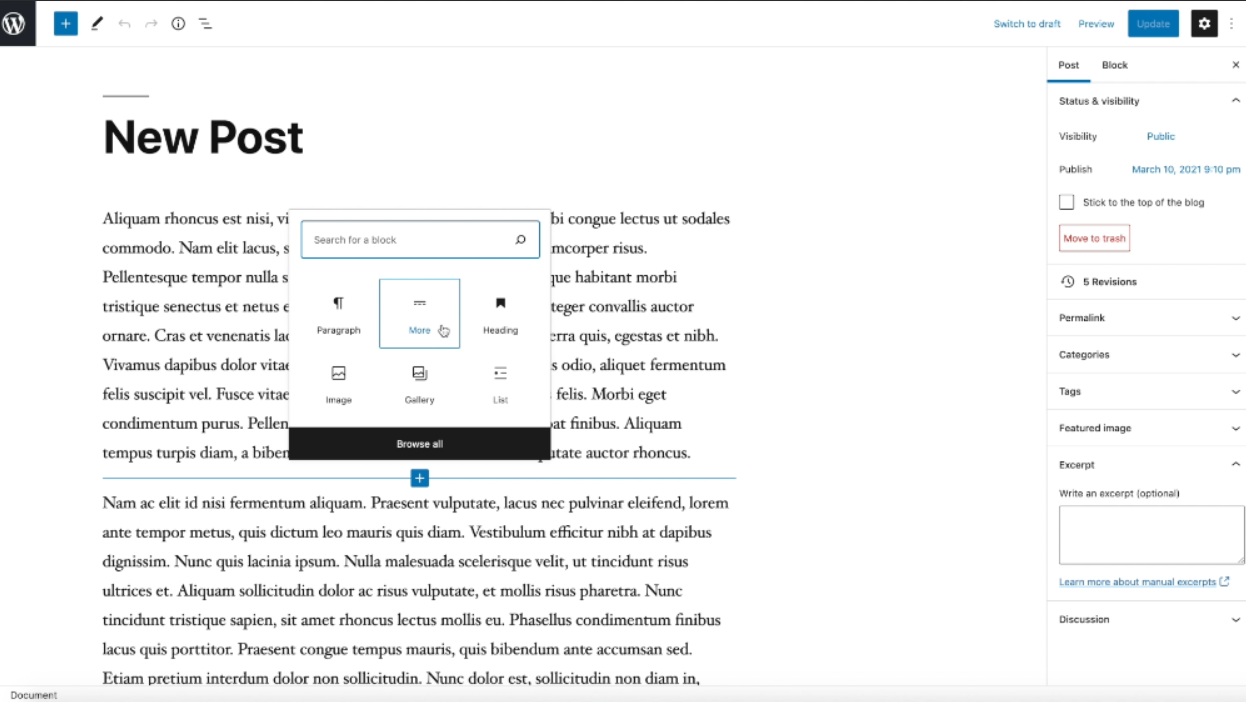
To change how your blog displays content in your feed, follow these step-by-step instructions: 1. Log in to your WordPress dashboard.2. In the left-hand menu, click on “Posts” and select “All Posts.”3. Choose the post you want to modify and click on its title to open it in the block editor.4. Scroll down to the…
Got any book recommendations?